How Can We Help?
Object Tracking
INAV Tracking
This Documentation is all operated on INAV 9.0.0 – 9.0.1
Note: this is intended for classroom studies
Camera used CVBS 5.8g Analog or ESP32 Camera 2.4g
Note: camera is mounted 45 degrees facing down for this documentation
Require to install Python and CV2 OpenCV 4.11.0.86
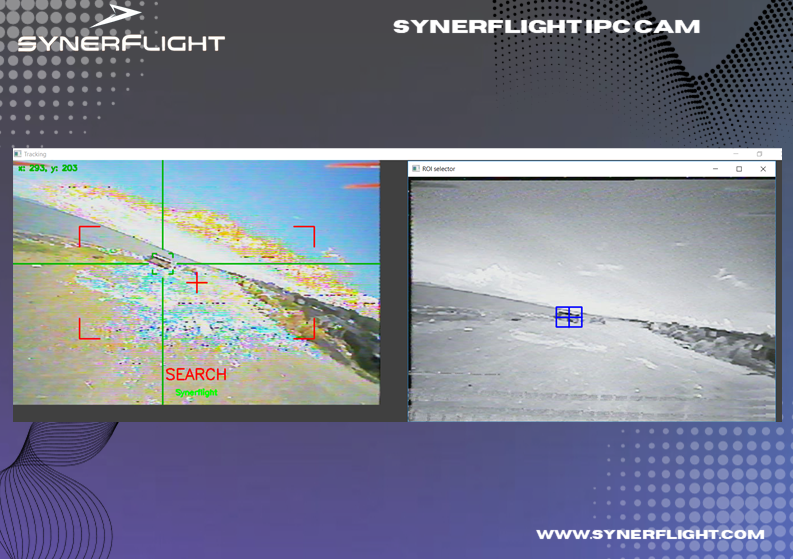
INAV configuration setup
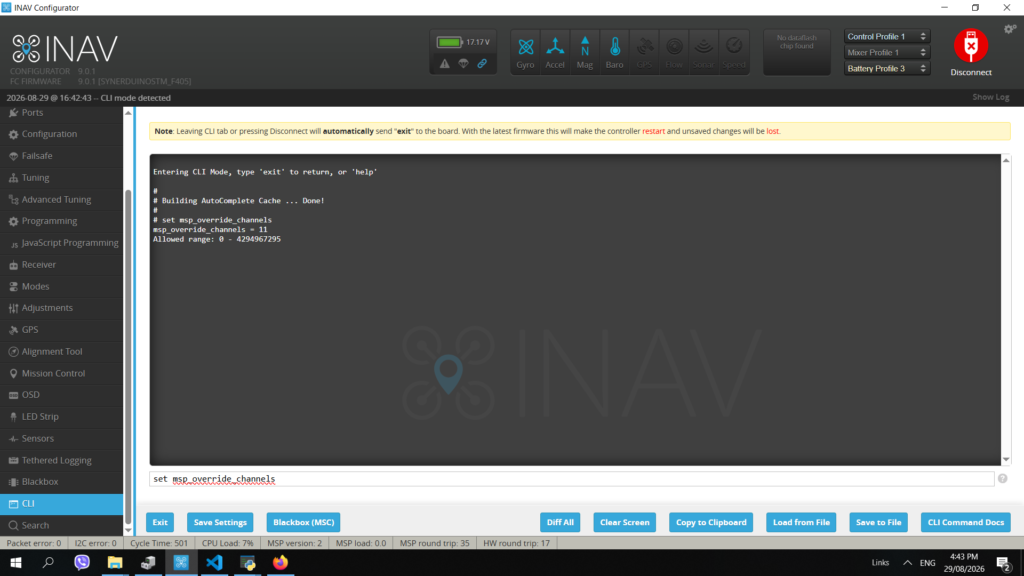
to interface with INAV you need to override the MSP input which your computer send via serial
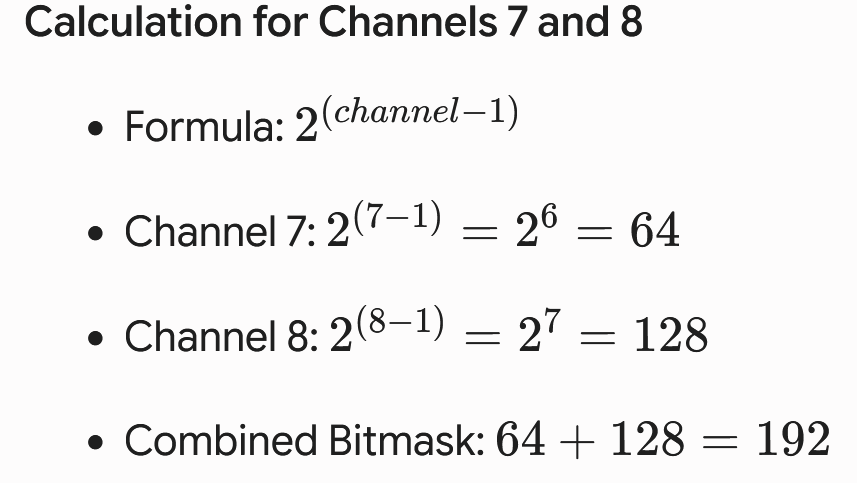
To override channels 7 and 8 using MSP commands in INAV, you need to calculate the correct decimal bitmask value for the msp_override_channels CLI setting. INAV uses a 16-bit integer bitmask where each bit represents a specific RC channel (Bit 0 = Channel 1, Bit 1 = Channel 2, etc.).
EXAMPLE: Calculation for Channels 7 and 8
Enter the following command to set the override mask:
set msp_override_channels = 192
- Type
saveand press Enter to reboot the flight controller. - Ensure you have mapped and configured the MSP Override flight mode to an auxiliary switch on your physical transmitter so you can toggle the override state safely in flight.
Note: For MSP override to function properly, your companion computer or external device must continuously stream MSP_SET_RAW_RC data at a rate of 5Hz or higher.
EXAMPLE: Calculation for Channels 1,2,3,4

Enter the following command to set the override mask:
set msp_override_channels = 11
- Type
saveand press Enter to reboot the flight controller. - Ensure you have mapped and configured the MSP Override flight mode to an auxiliary switch on your physical transmitter so you can toggle the override state safely in flight.
Note: For MSP override to function properly, your companion computer or external device must continuously stream MSP_SET_RAW_RC data at a rate of 5Hz or higher.
CLI setup
msp_override_channels inav override channel 2 and 4 Pitch and Yaw
set msp_override_channels = 6
msp_override_channels inav override channel 7 and 8
set msp_override_channels = 192
msp_override_channels inav override channel 1,2,3,4 Roll , Pitch, Throttle ,Yaw
set msp_override_channels = 15
msp_override_channels inav override channel 1,2,4 Roll , Pitch,Yaw
set msp_override_channels = 11
msp_override_channels inav override channel 7 , 8 , 9, 10
set msp_override_channels = 960
msp_override_channels inav override channel 1, 2, 4, 7 , 8 , 9, 10
set msp_override_channels = 971
Setup modes
on the modes tab look for Misc modes , we recommend to set a 3 position switch one to arm the tracker and another to take over RC MSP
the code set is MainTargetCV1 on to Channel 5 => Equal or Grater than 1500 to lock to object
on INAV Misc modes MSP RC override is set to 2000
this to ensure that ones lock is confirm on position 2 switch then Position 3 switch transfer control to computer from pilot
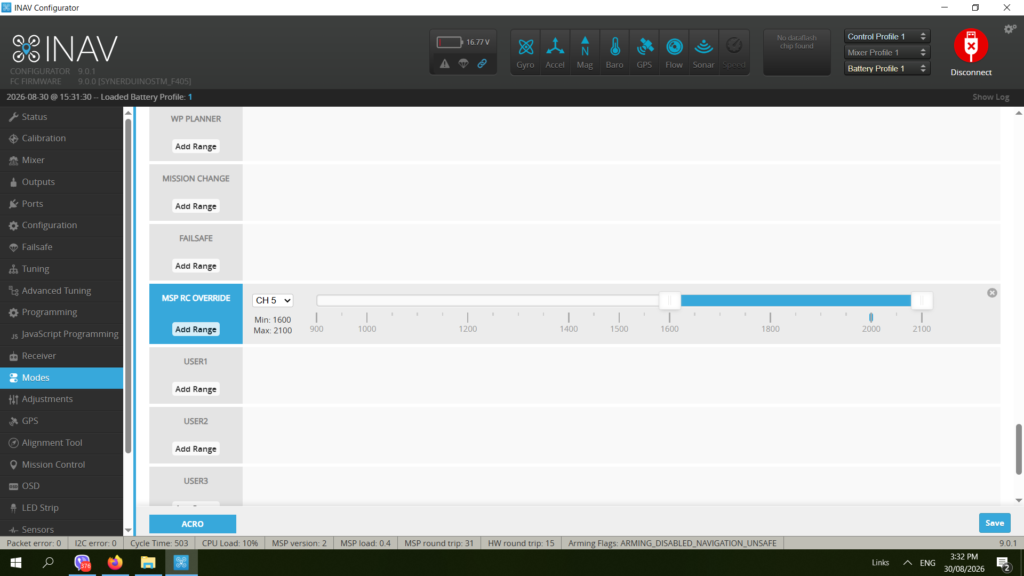
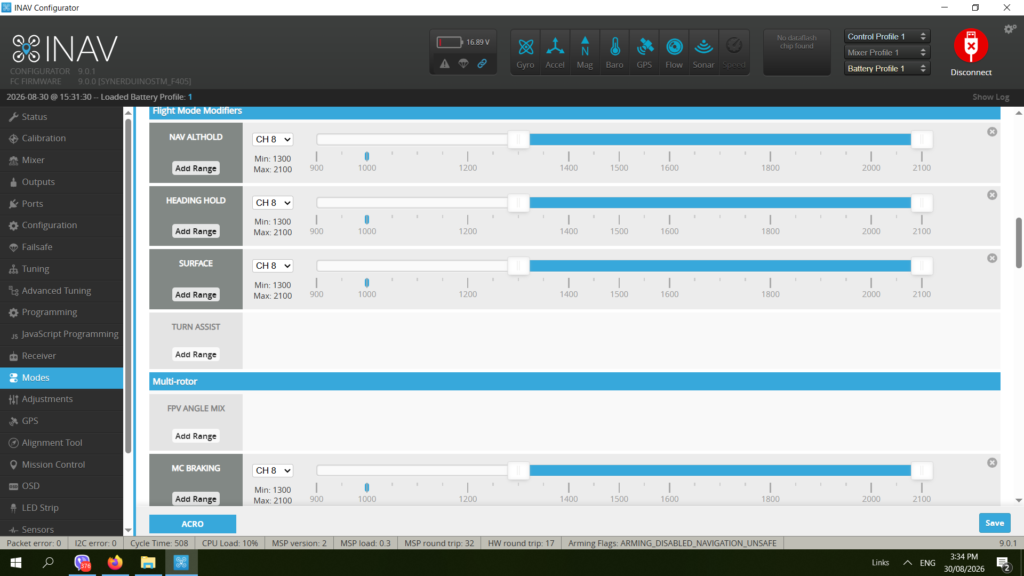
Other modes are active on other channels to support the AI systems
NAV Alt Hold – hold altitude Ch8
Heading Hold – Ch8
Surface – Ch8 only to be use for Terrain elevation following requirements (Optical flow hardware require) turning this off revert the drone to Baro Altitude.
MC Braking – 8Ch (you need to stop somehow when object is near)
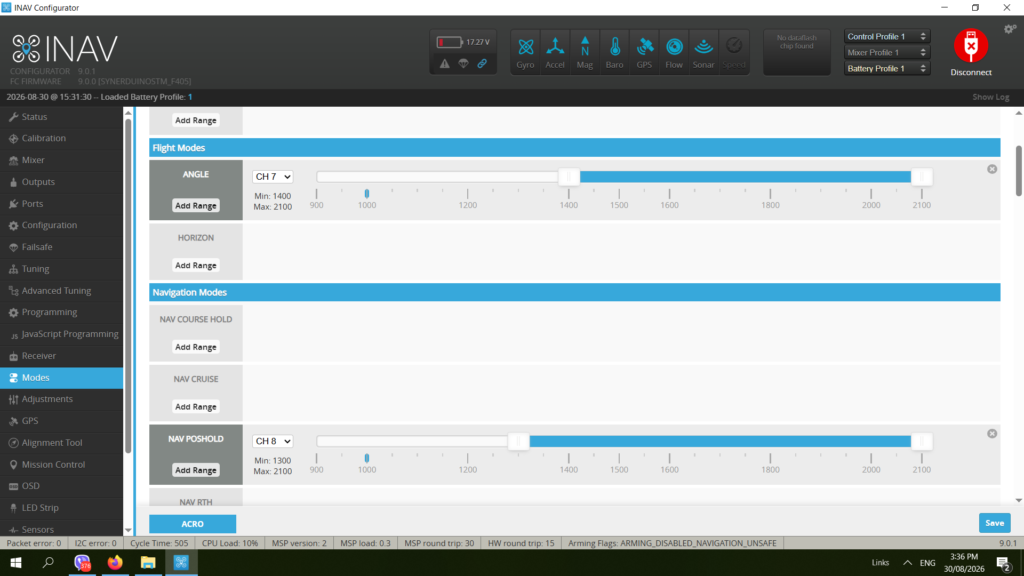
Angle – Ch7 Keeps Drone Level – this also can be same mode as Arming .
Nav Position – Ch8 Hold drone in place works both in GPS and Optical mode
Operation
input your camera source
- install python requirements for the application
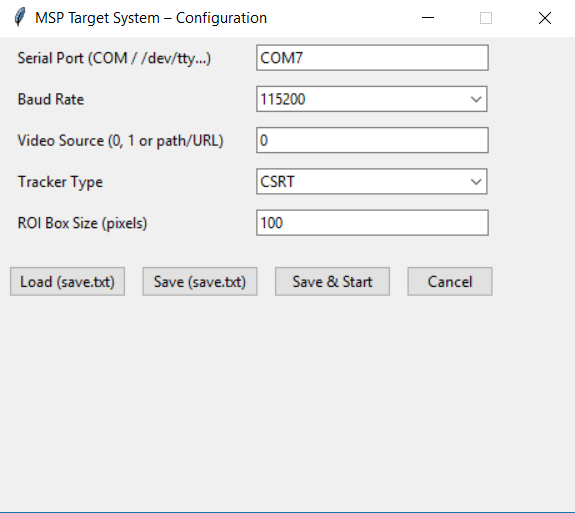
- on the MainTargetCV application update datas folder to your corresponding Baud and Comport number where your drone’s telemetry (Bluetooth SPP) is assign to
- the MainTargetCV1.py (Edit thru IDE ) Video = cv2.VideoCapture (1)
- for webcam or OTG cam # change the number your camera source 0 , 1 , 2
- for ESP32 Camera IP stream base off your drone’s Camera connection.
- for IPC camera setting page http://192.168.1.1
- for IPC camera streaming page http://192.168.1.1:81/stream? (this is what to put on your video.txt)
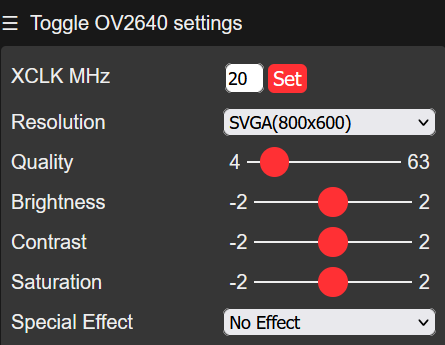
- for IPC ESP32 Camera XVGA or HD Resolution is a good balance of latency and detail
select your Tracker type
Overview of MIL, KCF, and CSRT
- MIL (Multiple Instance Learning): Uses machine learning by evaluating a neighborhood around the object’s current location rather than just a single positive sample. It handles moderate movement well, but it is slower than KCF and struggles to recover from full occlusion.
- KCF (Kernelized Correlation Filters): Built on a foundation of correlation filters, operating significantly faster than MIL by exploiting properties of circulant matrices. It is ideal for high-speed, stable, single-object scenes, though it does not handle full occlusion or rapid shape deformations well.
- CSRT (Discriminative Correlation Filter with Channel and Spatial Reliability): Uses spatial reliability maps to adjust the filter support to the object, making it effective for non-rectangular regions, scale changes, and rotations. It is more accurate and robust than KCF, but runs at a lower frame rate.
after Saving you can run the app it should automatically connect the Drone’s bluetooth telemetry and camera if done correctly
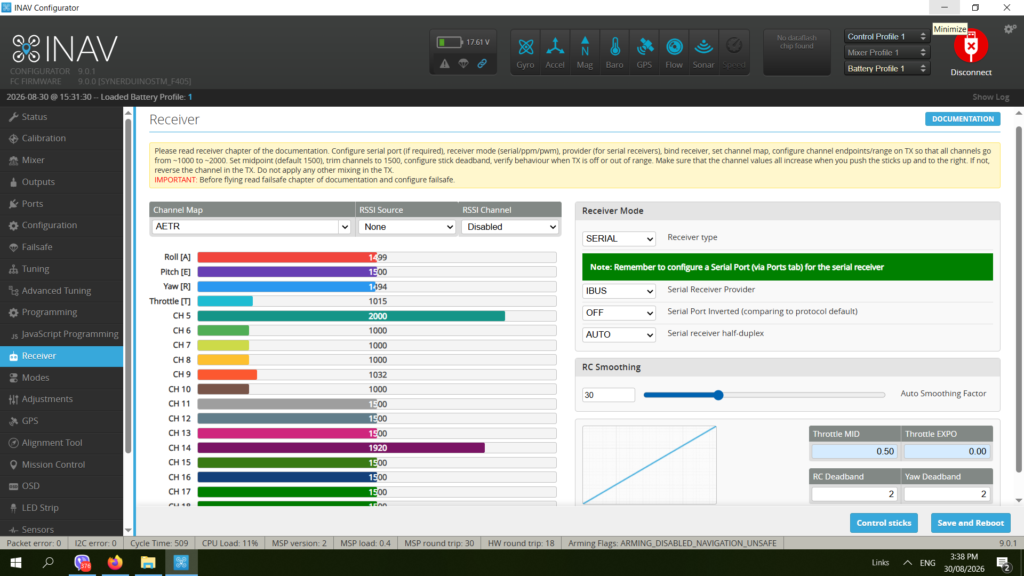
at this point you can plug a physical USB to the flight controller and go to receiver to see if the controls are responding to the remote
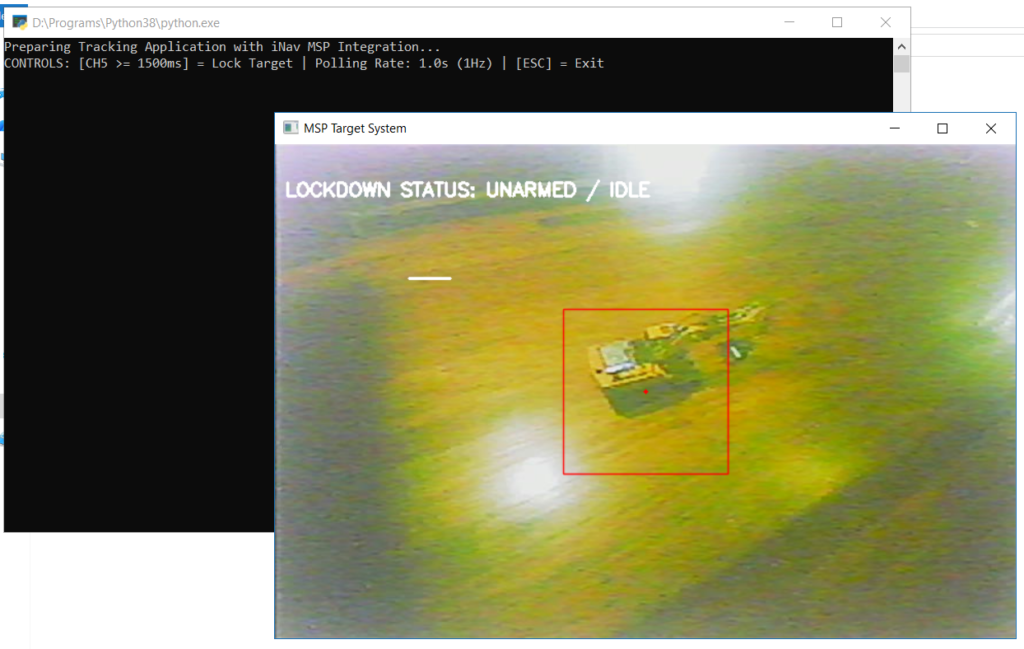
on app run you would be able to see an unarmed lockdown status
when the Ch 5 is place on 2nd position
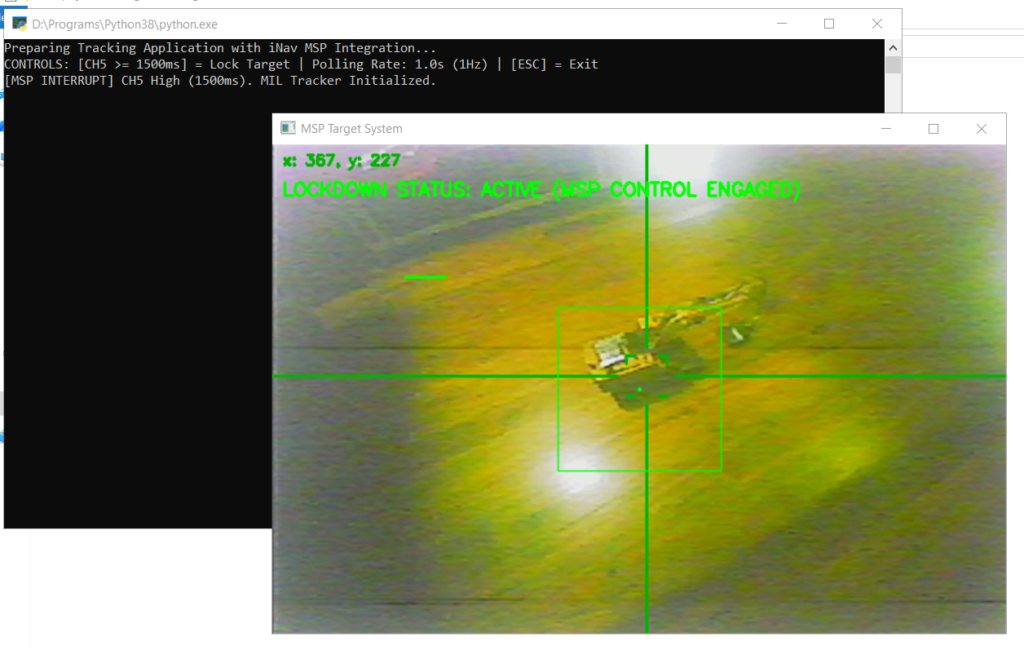
Once confirm a Lock then check your Receiver to see if Yaw and Pitch is responding to the input
take care on your first flight be ready to turn channel 5 off when drone is not behaving correctly and go thru the codes and settings again
RC expo rate can play a part is drone responds behavior

